Scripting
An introduction to the main concepts associated with Scripting are covered in this YouTube playlist.
On this page, you can find an overview of the project contents seen in the video.
Note: the videos were recorded with Unity 2019.4, while the project now targets Unity 6.3 and the Universal Render Pipeline (URP). Scenes, scripts and GameObjects keep the names used in the videos. The legacy
Inputclass used in the videos is deprecated, so the scripts now use the new Input System: every replaced line is kept as a comment directly above its new version, so you can follow the videos and see how each old call maps onto the new API.
Project Material
All the videos refer to scenes and scripts contained in the “Assets/_Scripting” folder.
- 00-Callbacks-Debug
- 01-TargetFollower
- 02-DeltaTime
- 03-Keyboard-GetKey
- 04-KeyBoard-Input-Movement
- 05-Camera-Independent-Movement
00-Callbacks-Debug
This scene simply contains a red cube with a script attached to it that prints to the editor console, using the Debug.Log(), the different Unity callbacks.
An even more detailed description on the execution order of Unity callbacks can be found in this Unity thread
01-TargetFollower
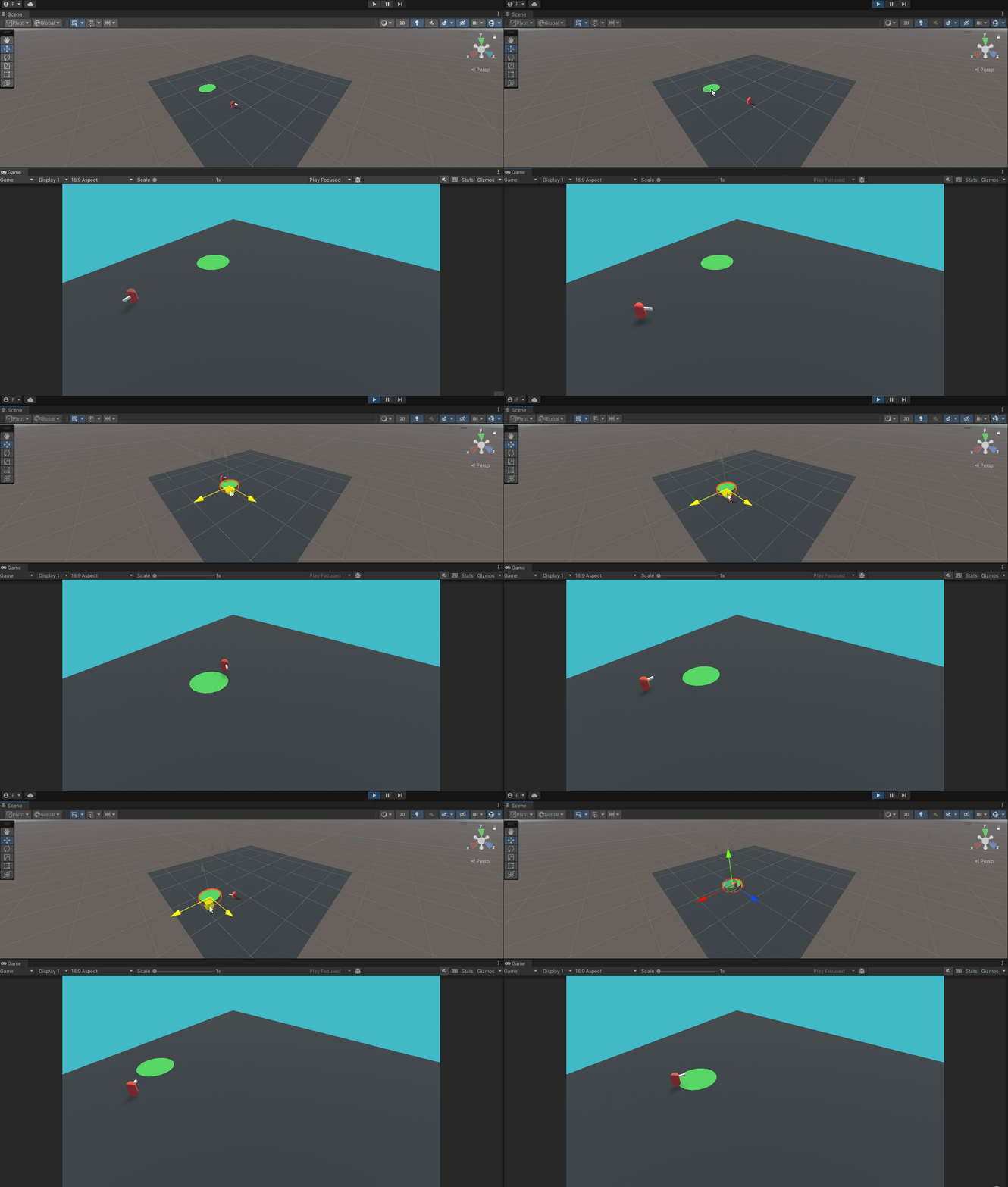
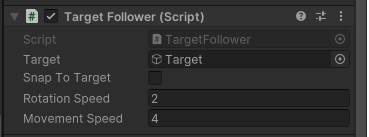
This scene shows a following behaviour scripted in the file, TargetFollower.cs. The MonoBehaviour collects the referenced object from the Target property in the script and then follows rotating and moving according to the other properties of the script. If no Target is assigned in the Inspector, the script searches the scene for the object carrying a SimpleTarget component with FindAnyObjectByType(), which replaces the now deprecated FindObjectOfType() seen in the video. Searching by component is more reliable than searching by GameObject name or tag.
02-DeltaTime
This scene simply shows the importance of using the property Time.deltaTime when moving objects during runtime. The red cube ignores it and shoots away, while the blue cube uses it and moves at a constant speed. The proper usage of this property ensures to have an application which is not frame-dependent (i.e., the objects’ behaviour is not affected by the framerate the application is capable to run on a given hardware).
A further explanation of this concept, and other examples are detailed also in this Unity manual page.
03-Keyboard-GetKey
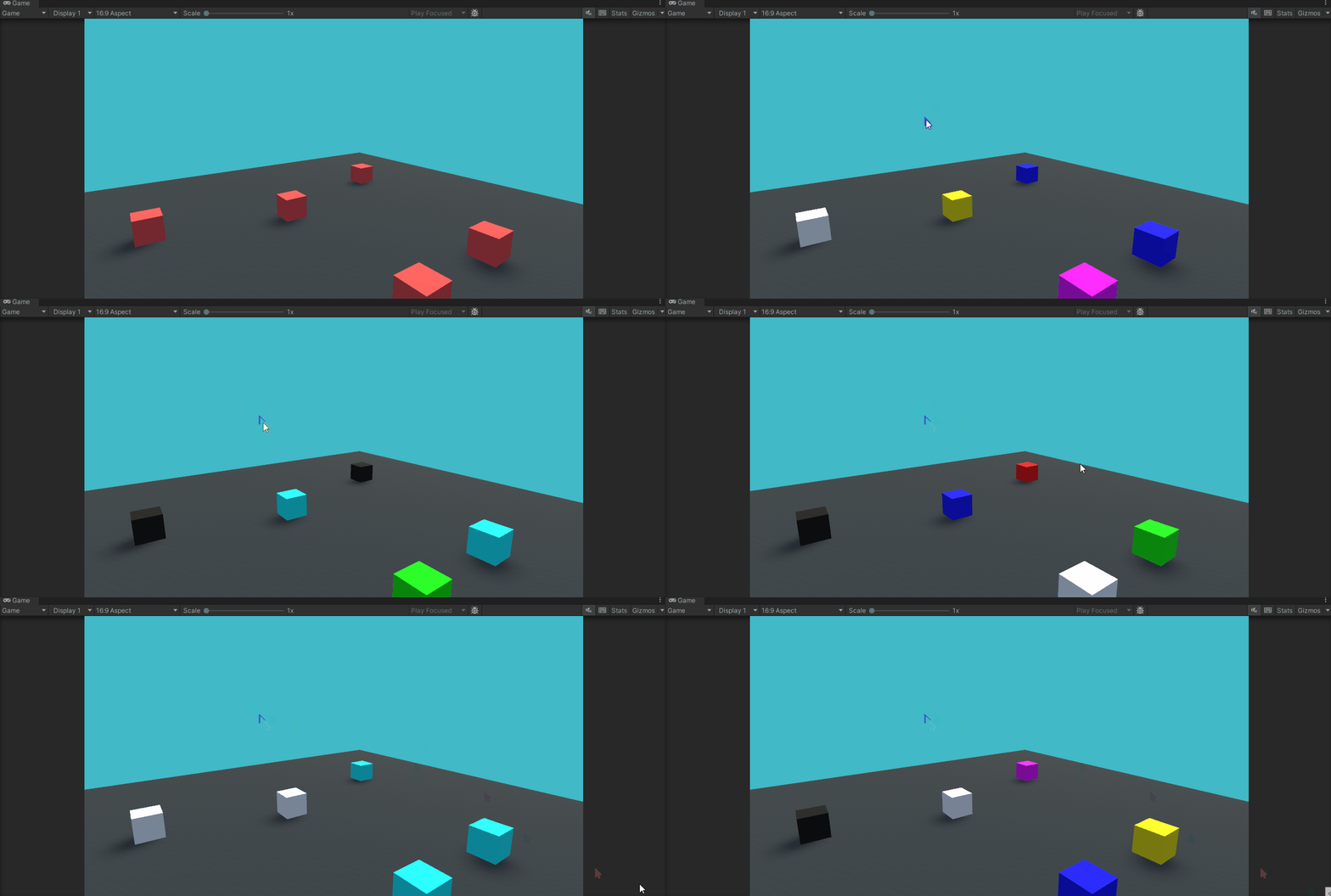
This scene shows how to detect input from single keys of the keyboard and act accordingly: Space changes the color of the cubes, S spawns new cubes at random positions and D destroys them all.
The video uses the legacy Input class and its GetKey(), GetKeyDown() and GetKeyUp() functions. With the new Input System, single keys are read directly from the keyboard device: isPressed corresponds to GetKey(), wasPressedThisFrame to GetKeyDown() and wasReleasedThisFrame to GetKeyUp(). Keyboard.current is null when no keyboard is connected, so it is checked first:
using UnityEngine.InputSystem;
...
Keyboard keyboard = Keyboard.current;
if (keyboard == null)
    return;

// Legacy Input (as in the videos):
// if(Input.GetKeyDown(KeyCode.Space))
if (keyboard.spaceKey.wasPressedThisFrame)
    ChangeColor();
In this action the example is very simple: the color of each cube is randomly assigned, using the Random class:
private Color[] _colors = new[] {Color.red, Color.blue, Color.green, Color.magenta, Color.white, Color.cyan, Color.yellow, Color.black};

private void ChangeColor()
{
    if(_renderer == null)
        return;
    _renderer.material.color = _colors[Random.Range(0, _colors.Length)];
}
04-KeyBoard-Input-Movement
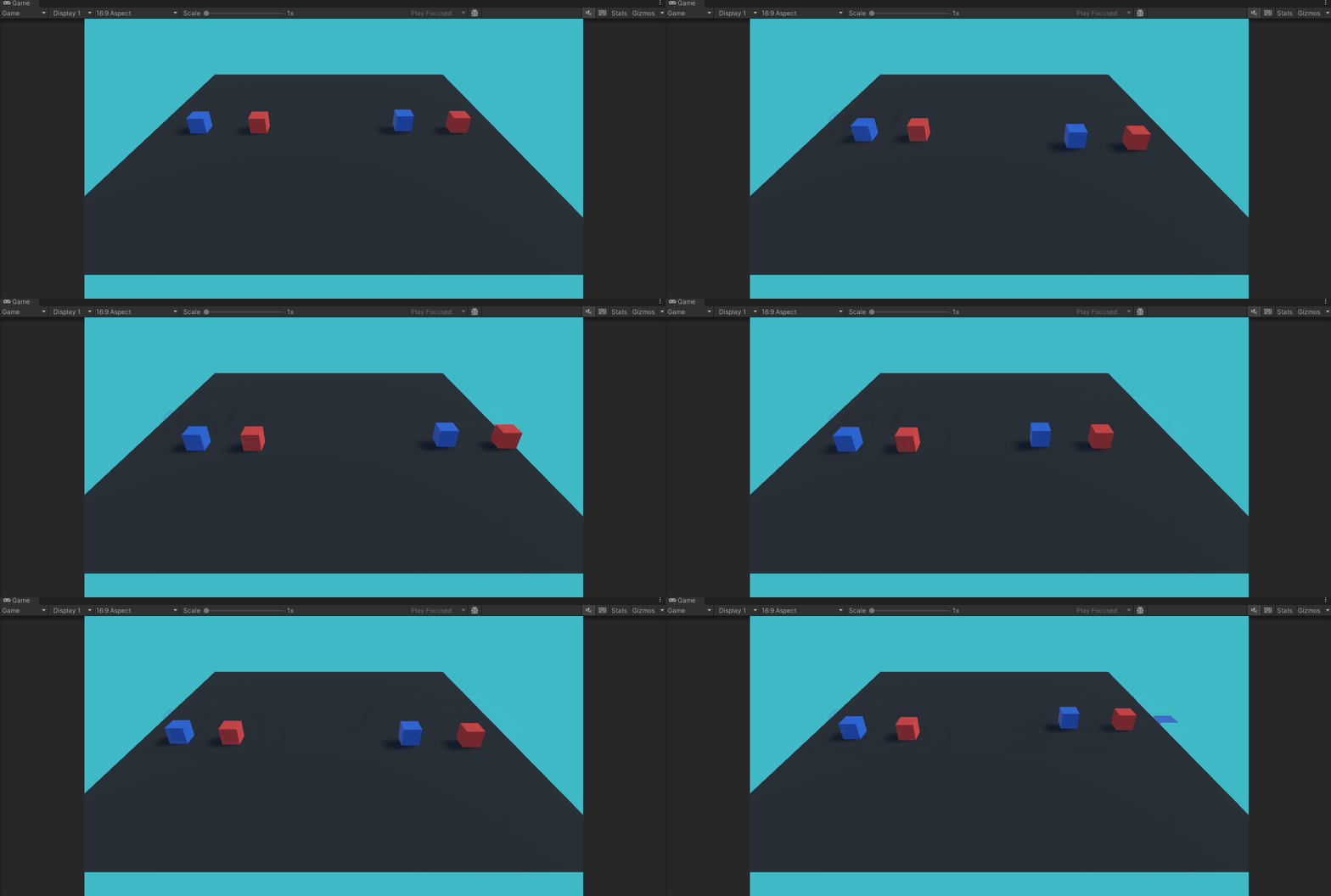
This scene demonstrates how to read directional input from either WASD or arrow keys. The cubes on the left have their movement continuously updated in order to maintain changes. The cubes on the right are translated from their original starting position based on the input read either through Input.GetKey() or Input.GetAxis(). This is to show how the input read through the first method is simply a boolean which can be either true or false. On the contrary, using the GetAxis() method the read input gradually increases and decreases from one of the extremes -1 or 1 to the rest value of 0.
Further details on the GetAxis() function can be found in the documentation page or in this YouTube video.
With the new Input System, the GetKey() scripts read the keys with isPressed, as in the previous scene. The axes, instead, are replaced by an Input Action: the project-wide actions asset (Assets/InputSystem_Actions.inputactions) defines a Player/Move action, bound to WASD and the arrow keys, which returns a Vector2. Just as “Horizontal” and “Vertical” were defined once in the Input Manager, Move is defined once in the asset, and each script receives it through an InputActionReference assigned in the Inspector:
public InputActionReference moveAction;
...
// Legacy Input (as in the videos):
// float h = Input.GetAxis("Horizontal");
// float v = Input.GetAxis("Vertical");
Vector2 move = moveAction.action.ReadValue<Vector2>();
float h = move.x;
float v = move.y;
An Input Action returns the raw input, without the gradual increase and decrease of GetAxis(). To keep the comparison visible, AxisInput.cs rebuilds that behaviour in code: its Ease() method moves the value towards the input at sensitivity units per second, back to rest at gravity units per second, and snaps to 0 when the direction is reversed, like the corresponding settings of the Input Manager.
05-Camera-Independent-Movement
This scene contains four cameras, placed on the four sides of the scene; pressing Space cycles through them (CameraSwitcher.cs). Two cubes are moved with the same Move input (CameraIndependentMovement.cs), but in two different ways:
- the purple cube moves along the world axes, so the same key moves it in a different direction on screen depending on the active camera;
- the green cube has CameraOrientationIndependent ticked: the input direction is converted from the active camera’s space to world space with TransformDirection(), so W always moves it away from the viewer and D always to the right, whichever camera is active.
The FORWARD and RIGHT labels on the ground always face the active camera (LookTowardsActiveCamera.cs), which finds every camera of the scene with FindObjectsByType() and follows the one that is enabled.