Scripting Interactions
An introduction to the main concepts associated with scripting interactions in Unity are covered in this YouTube playlist.
In this page you can find an overview of the project contents seen in the videos.
Note: as for the Scripting material, the scripts now use the new Input System, and every replaced line of the legacy
Inputclass is kept as a comment directly above its new version.
Project Material
All the videos refer to scenes and scripts contained in the “Assets/_Scripting” folder.
- 06-OnCollision
- 07-OnTrigger
- 08-Raycasting
- 09-EnvironmentInteraction-FP
- 10-EnvironmentInteraction-ScreenRay
All the scenes of this collection are interactive: press Play and click inside the Game view to enable input reading before using the keyboard and the mouse.
06-OnCollision
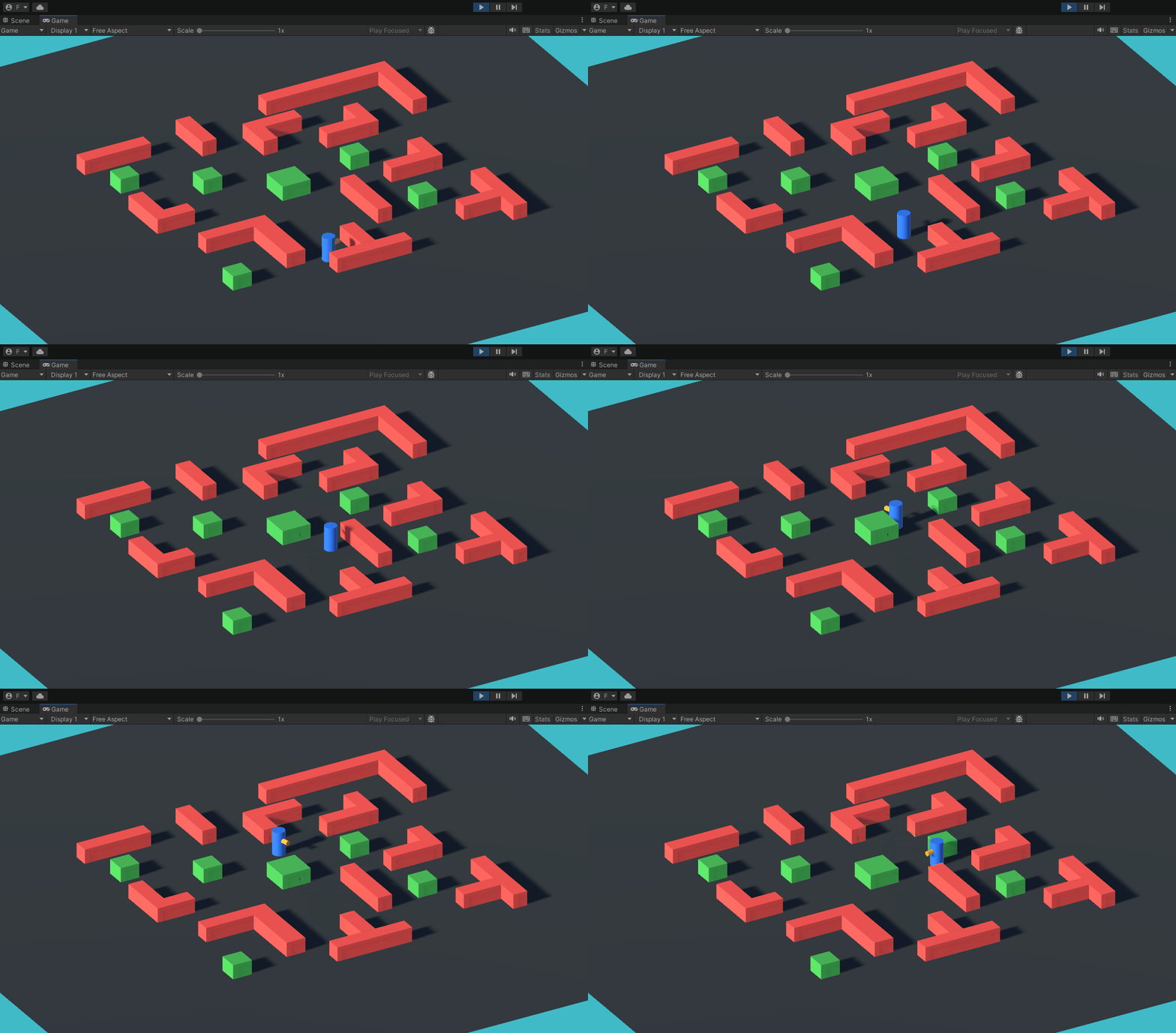
This scene shows how a script can react to the collisions detected by the physics engine. Move the character (the “RigidBody_ThirdPersonMovement” GameObject seen in ES04 - Physics) with the WASD keys and bump into the cubes:
- Red cubes: when touched they turn yellow and go back to red as soon as the contact ends (CollisionColorChanger.cs). They also print to the Console every phase of the collision (OnCollisionDebugger.cs), showing when each callback is called: OnCollisionEnter() once when the contact starts, OnCollisionStay() at every physics step while the contact lasts, and OnCollisionExit() once when it ends.
- Green cubes: besides changing color, they push the character back (CollisionPushBack.cs). The Collision parameter received by OnCollisionEnter() gives access to the Rigidbody of the other object, to which an impulse is applied with AddForce(), in the direction going from the cube to the character:
void OnCollisionEnter(Collision collision)
{
    Rigidbody rb = collision.rigidbody;
    if(rb == null)
        return;

    Repulse(rb);
}
Remember that the collision callbacks are called only if both objects have a (non-trigger) Collider and at least one of them has a non-kinematic Rigidbody.
07-OnTrigger
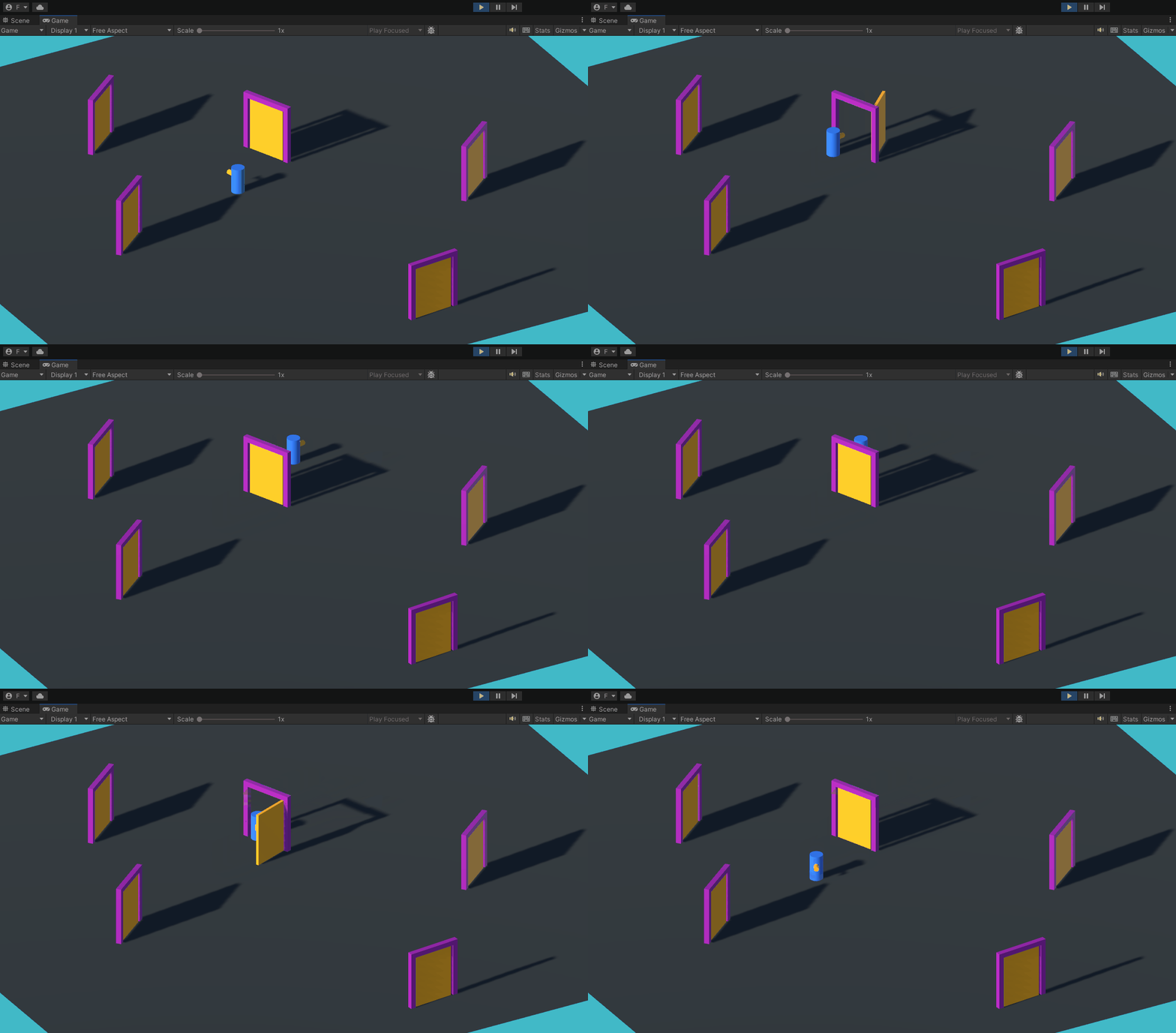
Not every collider has to physically stop other objects: when the Is Trigger property is checked, objects pass through it, and the collider is only used to detect when something enters or exits its volume. This scene uses triggers to build automatic doors: move the character with the WASD keys towards one of the five doors, and it opens; walk away, and it closes.
Each door has a trigger collider surrounding it and a DoorTrigger.cs script which calls OnTriggerEnter() to open the door and OnTriggerExit() to close it. To always open the door away from the character, the script checks on which side of the door the character is, using the dot product between the door forward direction and the direction towards the character:
private void OnTriggerEnter(Collider other)
{
    Vector3 othersPositionRelativeToDoor = (other.transform.position - transform.position).normalized;
    //the result of the dot product returns > 0 if relative position
    float dotResult = Vector3.Dot(othersPositionRelativeToDoor, transform.forward);
    float doorRotation = dotResult > 0 ? 90f : -90f;

    if (_door != null && _openOnEnter)
        _door.OpenDoor(doorRotation);
}
The rotation itself is animated over time by the Door.cs script, using a Coroutine.
08-Raycasting
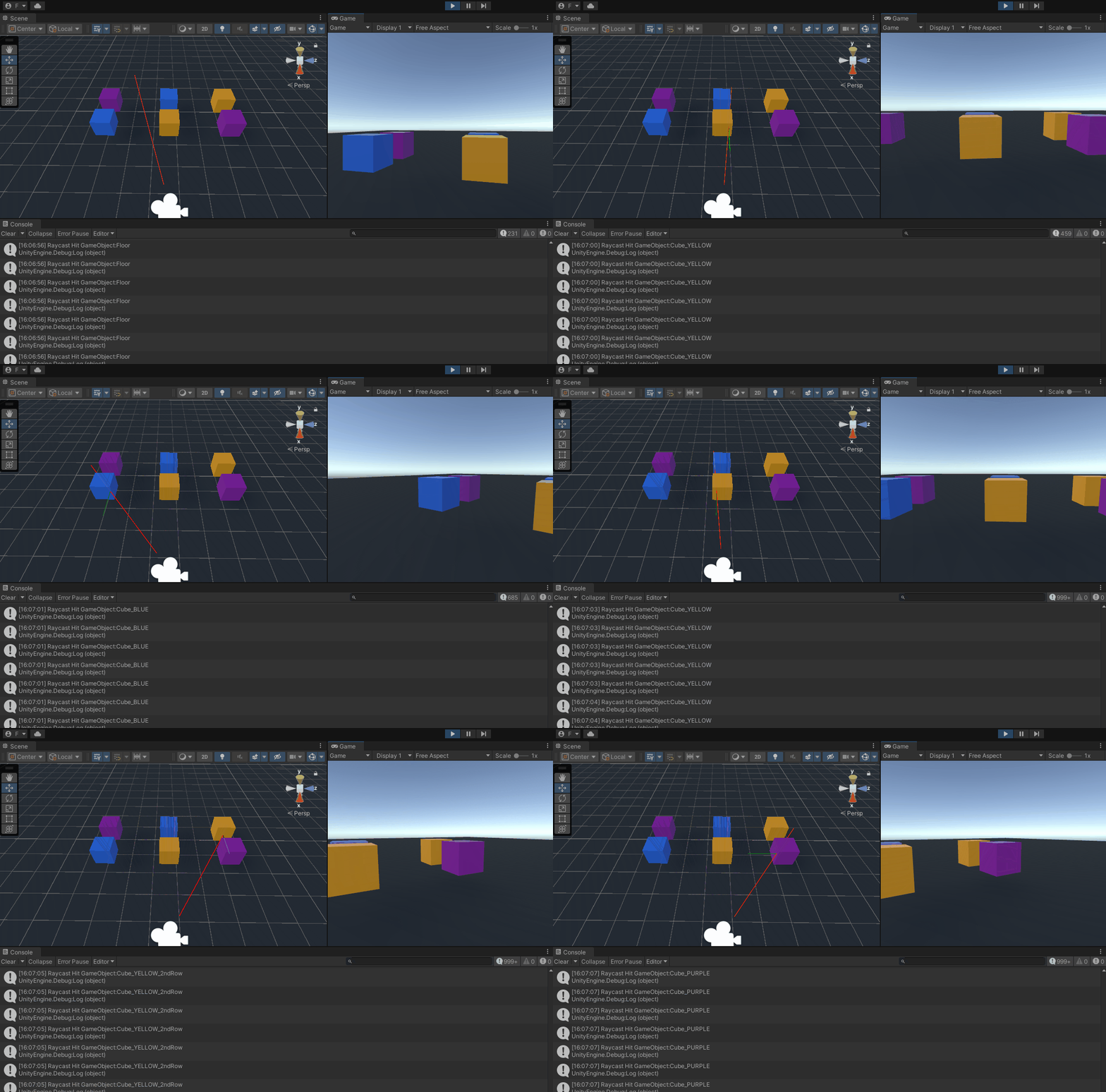
This scene introduces raycasting, i.e., casting an invisible ray in the scene and checking which collider it hits. The player is a first-person character controller (FirstPersonCharacterController.cs): move with WASD, look around with the mouse and jump with Space. Press Esc to release the cursor and the right mouse button to lock it again.
The SimpleRaycaster.cs script, attached to the same GameObject, casts every frame a ray from the camera along its forward direction (i.e., the center of the screen) using Physics.Raycast(). If something is hit within 5 meters, its name is printed in the Console, and the RaycastHit structure provides all the other information about the hit, such as the point, the distance and the normal of the surface:
Vector3 rayOrigin = _fpsCameraT.position + _fpsCameraT.forward * _fpsController.radius;
Ray ray = new Ray(rayOrigin, _fpsCameraT.forward);
RaycastHit hit;

if (Physics.Raycast(ray, out hit, _raycastDistance))
{
    //Get information on the hitted object
    Debug.Log($"Raycast Hit GameObject:{hit.transform.name}");
    ...
    //Show the normal of the surface hitted by the raycast
    Debug.DrawRay(hit.point, hit.normal * 1f, Color.green);
}
The ray (red) and the normal of the surface hit (green) are drawn with Debug.DrawRay(): they are visible in the Scene view while the game is running.
The character moves with a CharacterController component. The mouse movement is read from the Player/Look action of the project-wide actions asset, which replaces the legacy “Mouse X” and “Mouse Y” axes. Those axes had a Sensitivity of 0.1 in the Input Manager: the same scaling is now done by a ScaleVector2 processor on the mouse binding of the action, so the camera turns at the same speed seen in the video.
09-EnvironmentInteraction-FP
This scene puts raycasting to work to interact with the environment, using the same first-person controls of the previous scene. The FPSInteractionManager.cs script casts a ray from the center of the screen, and the crosshair changes color depending on what the ray is pointing at: green for an object you can interact with, yellow for one you can grab, red for anything else.
The script does not need to know the specific objects of the scene. Every interactive object has a component extending the abstract class Interactable (or Grabbable), and the manager only checks whether the hit object has one:
_pointingInteractable = hit.transform.GetComponent<Interactable>();
if (_pointingInteractable)
{
    // Legacy Input (as in the videos):
    // if(Input.GetMouseButtonDown(0))
    if (Mouse.current.leftButton.wasPressedThisFrame)
        _pointingInteractable.Interact(gameObject);
}
Each kind of object then implements its own reaction in the Interact() method. The scene contains several areas:
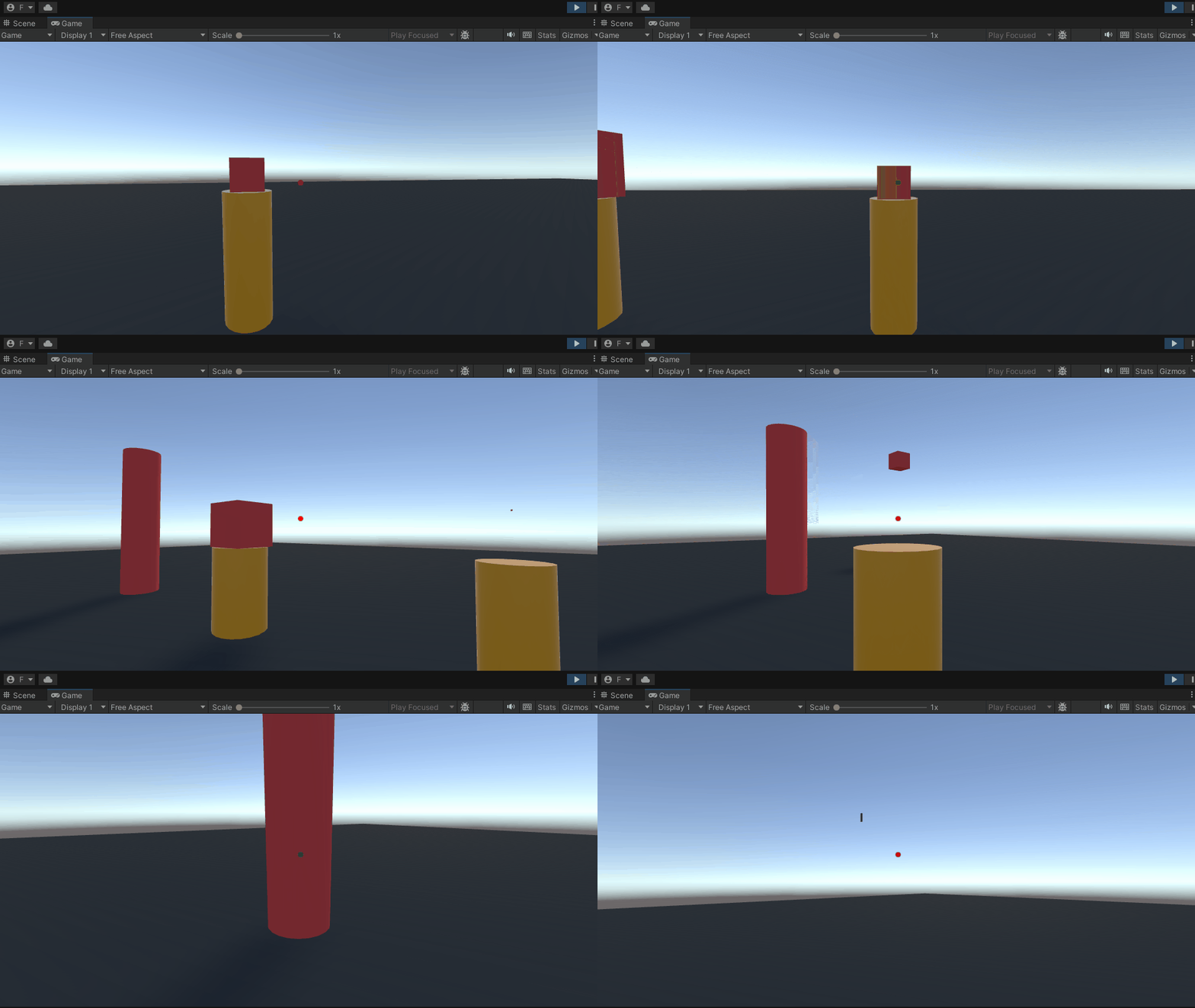
Shrinkers: left-click on the yellow cubes to halve their size (Shrinker.cs).
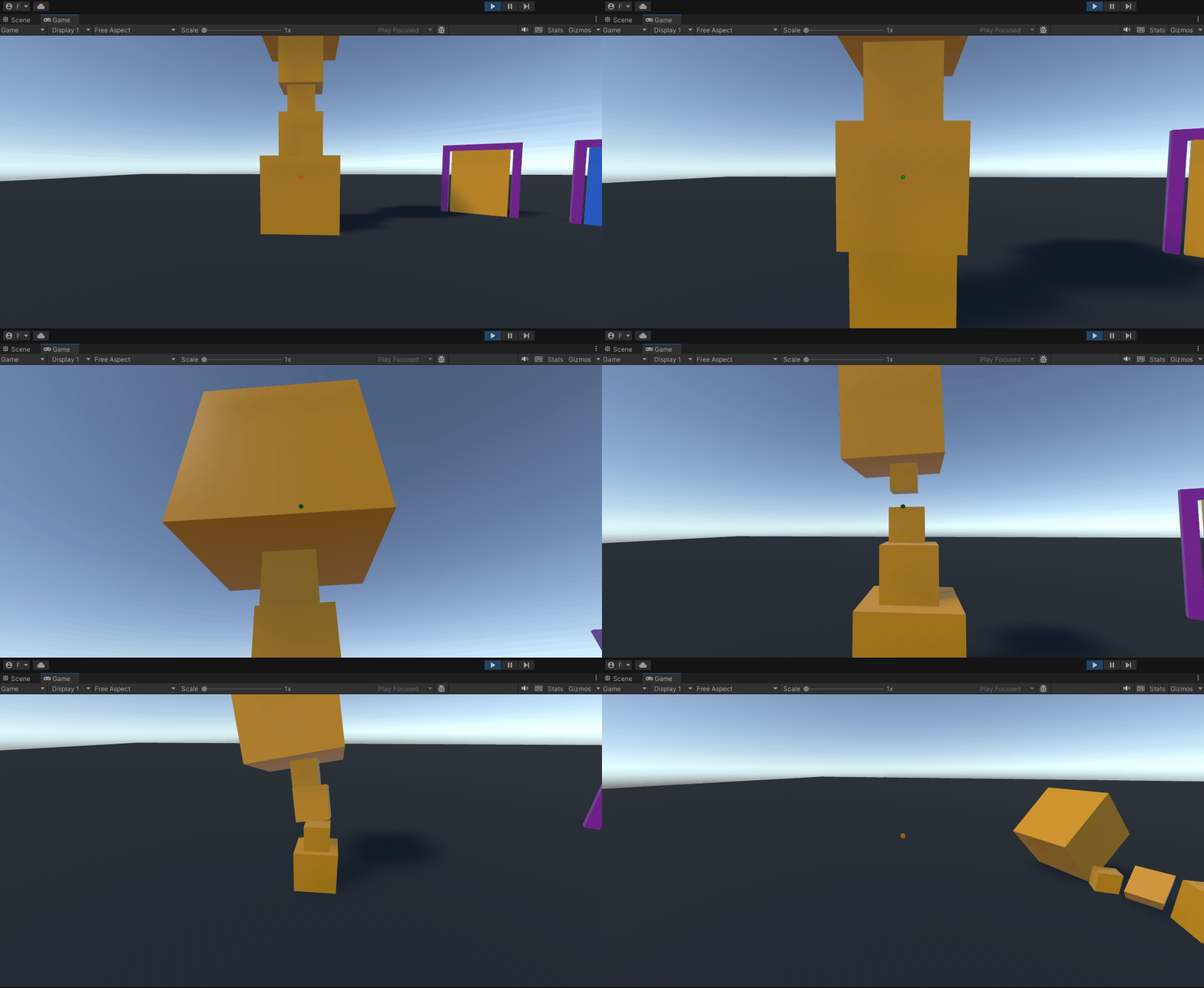
Pushers and grabbables: left-click on the red objects to push them away from you with an impulse force (ObjectPusher.cs). The blue objects can instead be grabbed with the right mouse button and dropped with the left one (PhysicsGrabbable.cs): while grabbed, the object is made kinematic, its collider is disabled and it is parented to the camera, so that it follows the view.
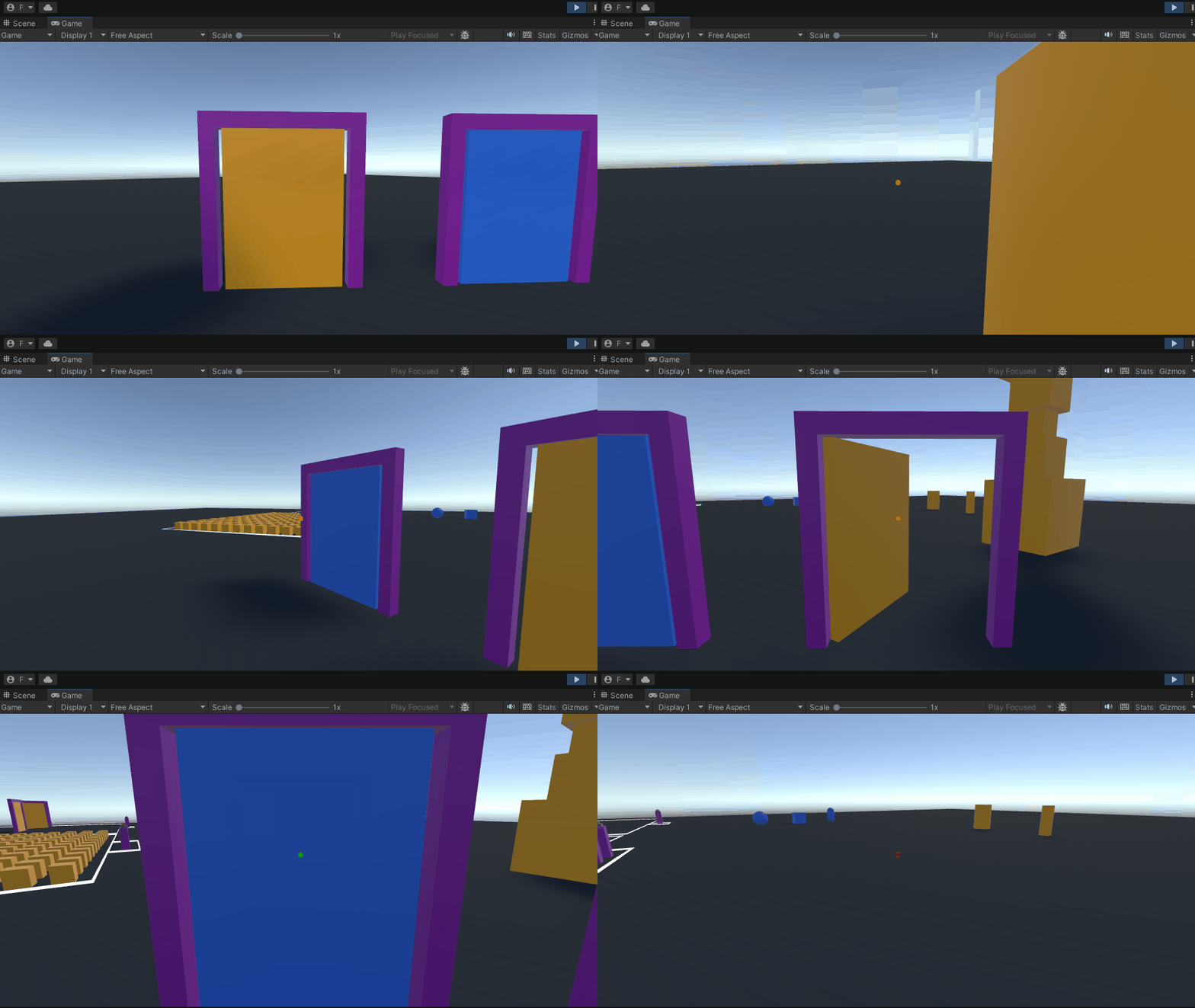
Doors: besides the automatic trigger doors of 07-OnTrigger, one door opens only when you click on it (DoorOpener.cs), and closes when you walk away from it.
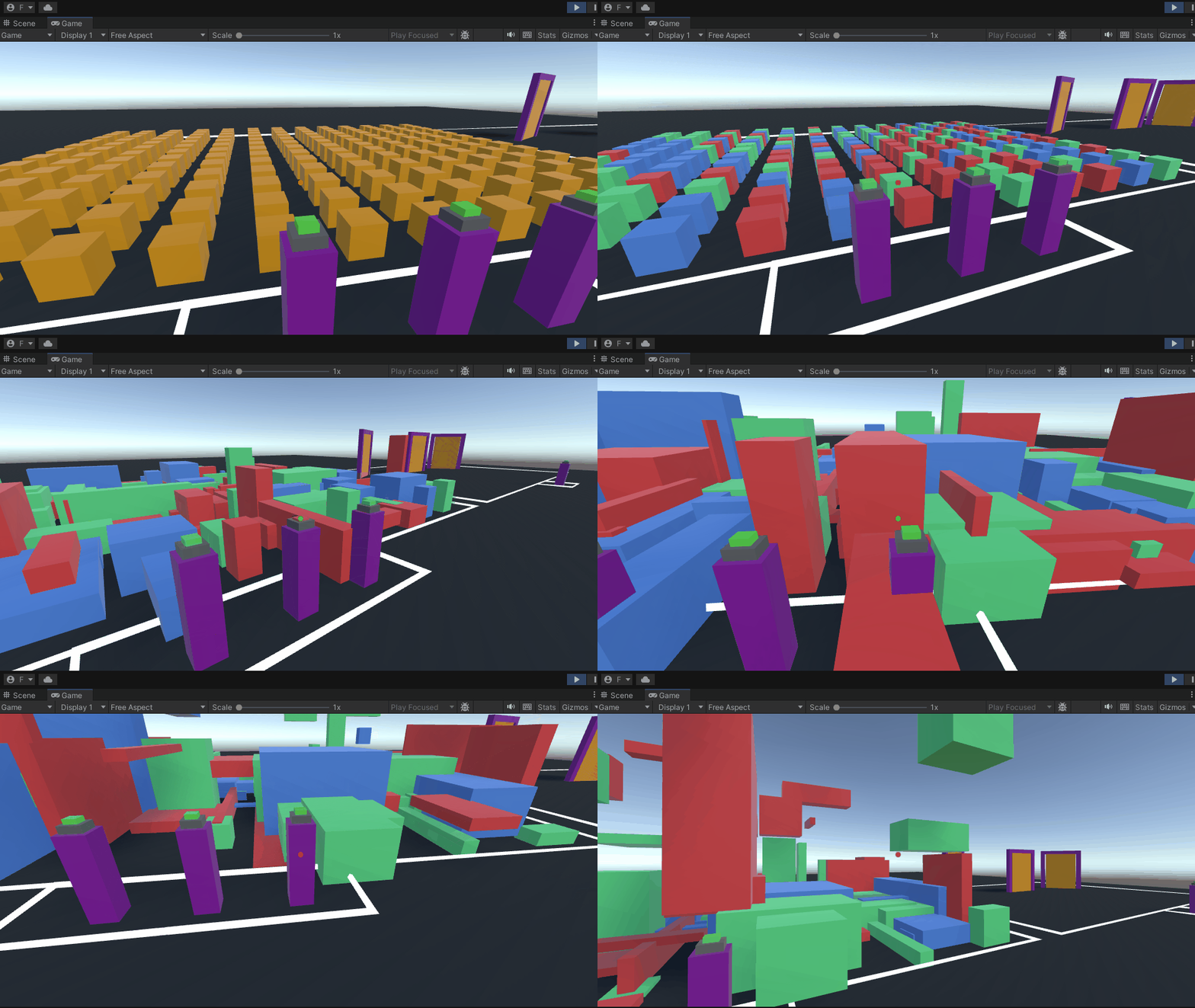
Buttons: the three buttons on the pillars are pressed with a left-click (Button3D.cs, animated with DOTween). Pressing a button raises an event, and the cubes of the area listen to it (ButtonReactableCube.cs) to randomly change their color, scale or height. Press R to bring them back to their original position and scale.
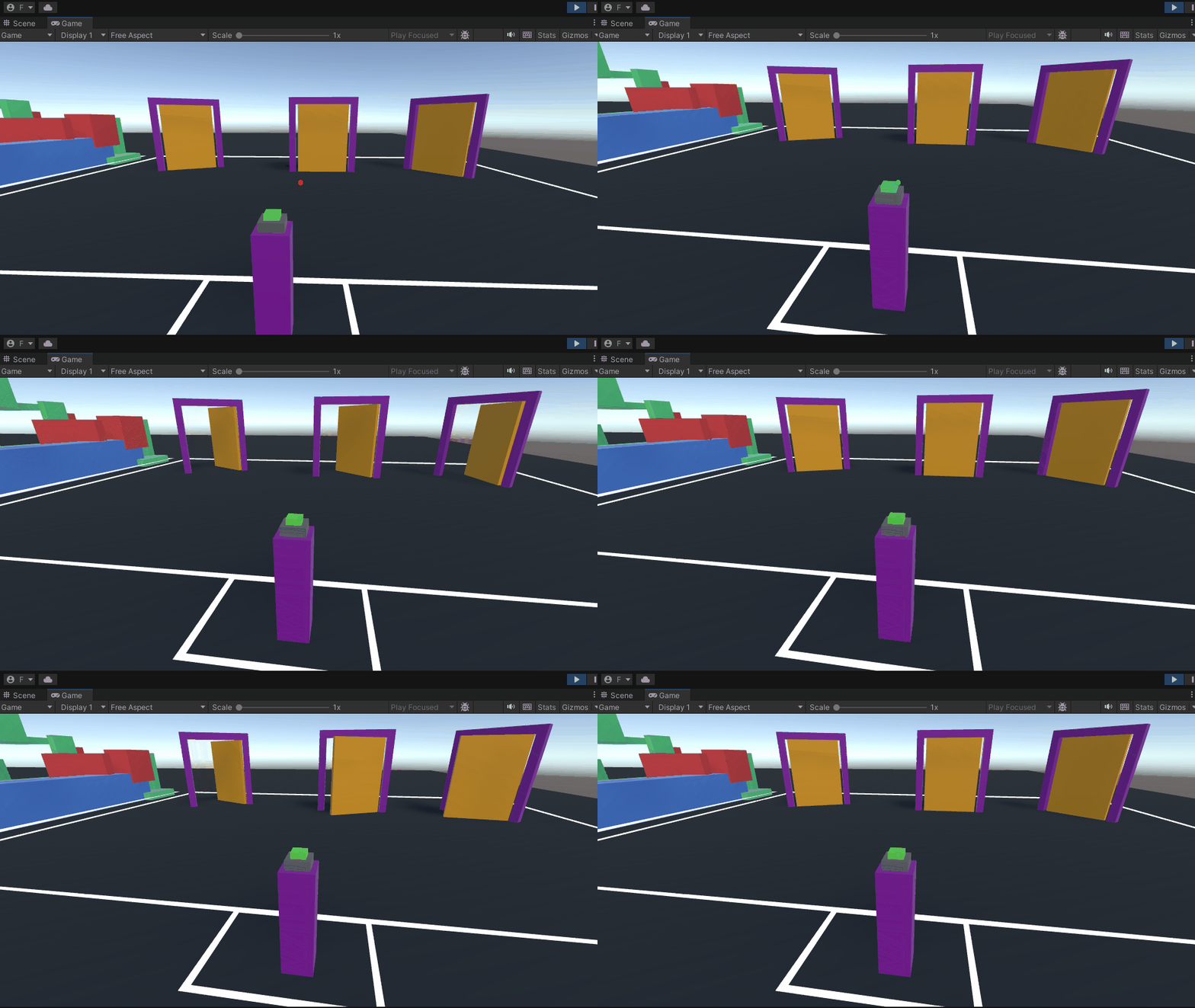
The same event mechanism is used by the last group of doors: each one is opened, by a random angle, by the button in front of it, and closes automatically after a while (DoorOpeningButton.cs).
10-EnvironmentInteraction-ScreenRay
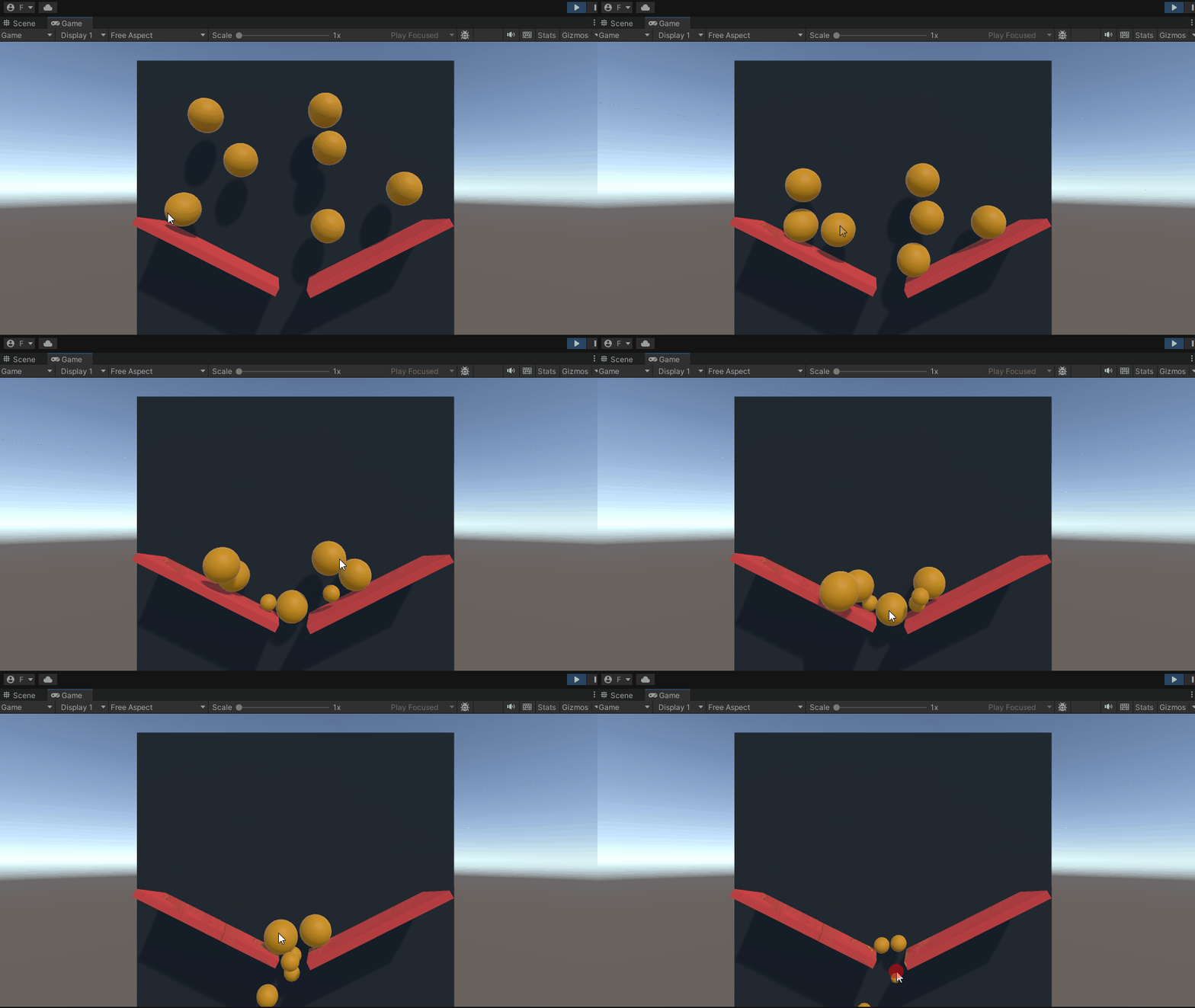
The ray does not have to start from the center of the screen: in this scene it goes from the camera through the position of the mouse cursor, which is the typical way of selecting objects with the mouse. Right-click on the yellow spheres to halve their size, using the same Shrinker.cs script of the previous scene.
The ray is built by Camera.ScreenPointToRay(), which converts a position on the screen into a ray in the 3D scene (ScreenRayCaster.cs):
// Legacy Input (as in the videos):
// if (Input.GetMouseButtonDown(1))
if (mouse.rightButton.wasPressedThisFrame)
{
    // Ray ray = _camera.ScreenPointToRay(Input.mousePosition);
    Ray ray = _camera.ScreenPointToRay(mouse.position.ReadValue());
    RaycastHit hit;
    if (Physics.Raycast(ray, out hit, 100))
    {
        Interactable interactable = hit.transform.GetComponent<Interactable>();

        if (interactable != null)
            interactable.Interact(gameObject);
    }
}
With the new Input System, the mouse buttons and the cursor position are read directly from the mouse device: Mouse.current.leftButton and rightButton replace GetMouseButton(0) and GetMouseButton(1), and Mouse.current.position replaces Input.mousePosition.